
Key Takeaways
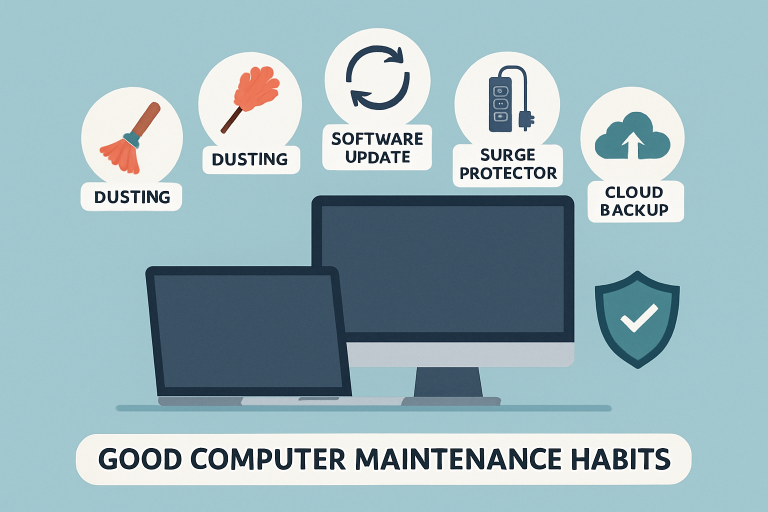
- Keep your devices free of dust to prevent overheating and hardware issues.
- Always install the latest software updates to bolster security and speed.
- Use best practices for power management to protect key components.
- Practice safe browsing to avoid malware and potential threats.
- Routinely back up your data to safeguard against loss and corruption.
Consistent care and attention can make a world of difference in how long your computer lasts and how well it serves you. By adopting a handful of straightforward habits, you’ll not only boost your device’s performance but also sidestep costly repairs and frustrating downtime. Learning about effective computer maintenance & repair practices can help keep your computer running at its best for years to come.
Even if you’re not a tech expert, small changes in your daily routine can prevent common issues like overheating, system slowdowns, and unexpected crashes. Whether your computer is for work, school, or personal use, a bit of attention goes a long way. Let’s take a look at actionable steps to maximize your computer’s lifespan and efficiency, ensuring it remains a reliable partner in your digital life.
Keep Your Computer Clean
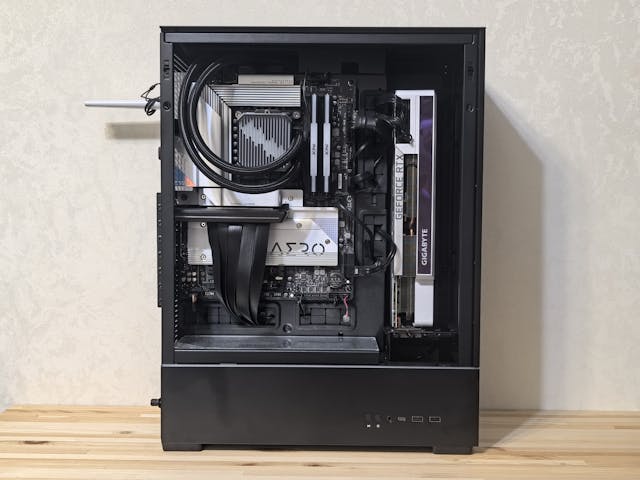
Dust, dirt, and debris can easily accumulate inside and outside your computer, especially in vents, fans, and crevices. If left unchecked, this buildup obstructs airflow, forcing your hardware to work harder and raising the risk of overheating. Make a habit of powering down your computer and unplugging it before cleaning. For additional guidance, technical support can provide step-by-step instructions or troubleshoot persistent issues, ensuring your system stays safe while you clean. Use compressed air to blow out dust from desktops, paying special attention to internal components like fans and power supplies. For laptops, gently clean around vents and keyboards with a soft, dry brush or cloth. Not only does this help extend your computer’s life, but it also keeps performance steady and reliable.
Update Software and Drivers Regularly
Outdated software is one of the leading causes of security vulnerabilities and slowdowns. Operating system providers and hardware manufacturers release regular updates that patch security flaws, improve performance, and add new features. Set your system preferences to check for automatic updates, and manually review for any driver updates—especially after installing new hardware. Up-to-date drivers keep your device compatible with new technologies and minimize crashes or glitches, contributing to a smoother user experience.
Manage Power Settings Wisely
Unstable power can cause immediate and long-term harm to your electronics. Plug your desktop or laptop into a surge protector to shield sensitive components from voltage spikes. For areas prone to power outages, use an uninterruptible power supply (UPS) to give you time to shut down safely. Adjust your operating system’s power settings to put your device to sleep or hibernate when idle—this reduces unnecessary wear. Remember to shut down your computer entirely occasionally to reset hardware and apply essential updates.
Practice Safe Browsing Habits
The web is full of potential threats, such as viruses, spyware, and phishing scams. Strengthening your online habits guards your computer and personal data. Avoid clicking on suspicious links, downloading unknown software, or opening unsolicited email attachments. Always navigate to trusted websites and double-check URLs for authenticity before entering sensitive information. Install reputable antivirus software and keep it up to date for real-time malware protection.
Regularly Back Up Important Data
No computer is immune to accidents, drive failures, or ransomware attacks — which is why data backup is so important. As explained in this TechTarget guide, backing up your data protects you from the unexpected and ensures you can recover important files when disaster strikes. Routine backups mean you won’t lose valuable files and photos if something goes wrong.
You can use external hard drives for local backups or subscribe to a cloud storage solution for off‑site protection. Automated backup tools make the process effortless—just schedule backups weekly or monthly to stay covered. This small habit can save you a lot of time and prevent panic during a crisis.
Optimize Storage and Memory
Overstuffed hard drives and overloaded memory slow down your system’s response times and can reduce its useful life. Every few months, review your computer for unused programs, duplicate files, and old downloads. Built-in utilities like Windows’ Disk Cleanup or Mac’s Optimized Storage can swiftly free up space and improve speed. When your system isn’t bogged down by unnecessary clutter, it’s less prone to errors and hardware stress.
Monitor System Performance
Pay attention to signs of trouble such as unexpected shutdowns, software freezes, or noisy fans. Use system monitoring tools—such as Windows Task Manager or Mac Activity Monitor—to keep an eye on CPU temperature, memory usage, and disk health. If you notice dips in performance or overheating, address them promptly to avoid long-term damage. Early intervention is crucial to extending your computer’s lifespan.
Protect Against Physical Damage
Accidents and harsh environments can drastically reduce a computer’s longevity. Always transport laptops in padded cases to absorb shocks and avoid tumbles. Keep drinks and food away from your system—spills can cause irreversible electrical damage. Place your desktop or laptop in a well-ventilated, dry area, and handle all components and ports gently. Simple protective habits help you avoid costly repairs and prolong your device’s functionality.
Consistent maintenance, careful handling, and modern security practices are the keys to keeping your computer fast, safe, and in good working shape for years. By embedding these habits into your routine, you’ll enjoy a reliable digital companion and minimize the likelihood of disruptive problems.